
AI Meeting: Install & Use
AI Meeting is a macOS desktop app that turns the audio playing on your Mac into live captions, detects the questions being asked, and suggests answers with ModelFold chat models.
The app is named AI Meeting. Some screenshots below show the Chinese interface; buttons are in the same places in every language.
Requirements
- A Mac with Apple silicon (M1 / M2 / M3 / M4 or later) or an Intel processor
- Apple silicon Mac: macOS 26 or later; Intel Mac: macOS 15 or later (live translation needs macOS 26)
- A ModelFold API key with credits on the account (create one in the console)
- An internet connection on first run to download the speech model (about 1.6 GB on Apple silicon, 190 MB on Intel, once)
Windows is in progress.
Step 1: Download and install
- Download the Apple silicon or Intel installer from the AI Meeting page (not sure which? Apple menu → About This Mac, see "Chip").
- Open the
.dmgand drag the app into the Applications folder next to it. - You can then eject and delete the
.dmg.
Step 2: First launch ("Apple could not verify…")
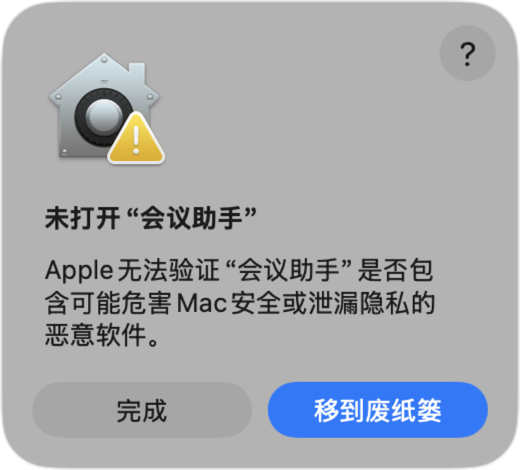
This beta is not notarized yet, so macOS blocks the first launch. That is expected and only needs to be handled once.
Double-click the app in Applications. When the dialog below appears, click Done (not "Move to Trash").
Open System Settings → Privacy & Security, scroll to Security at the bottom, find the line saying the app was blocked, and click Open Anyway.
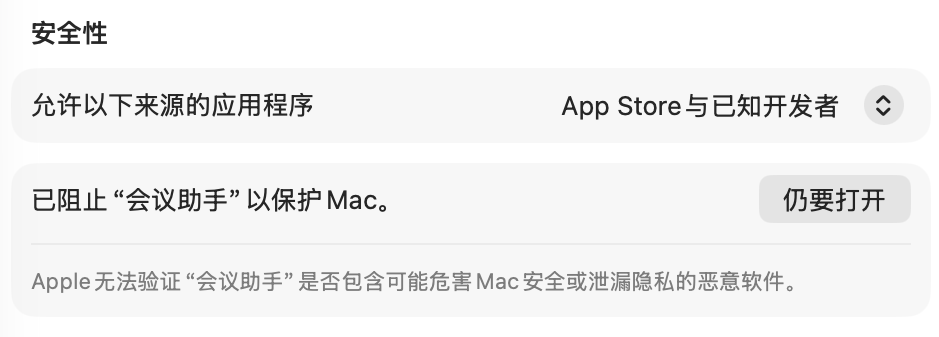
Confirm with your login password (or Touch ID), then click Open once more.
From then on it opens like any other app.
TIP
If the line is not shown in Privacy & Security, double-click the app once more and come back — it only appears for about an hour after the block.
Step 3: Add your API key
- Create a key under ModelFold console → API Keys. A dedicated key for this app makes it easy to revoke later.
- Paste it into the ModelFold Key field.
- Pick the answer model (default: DeepSeek V4.1 Flash — fast and inexpensive) and the recognition language (default: auto, handles mixed Chinese and English).
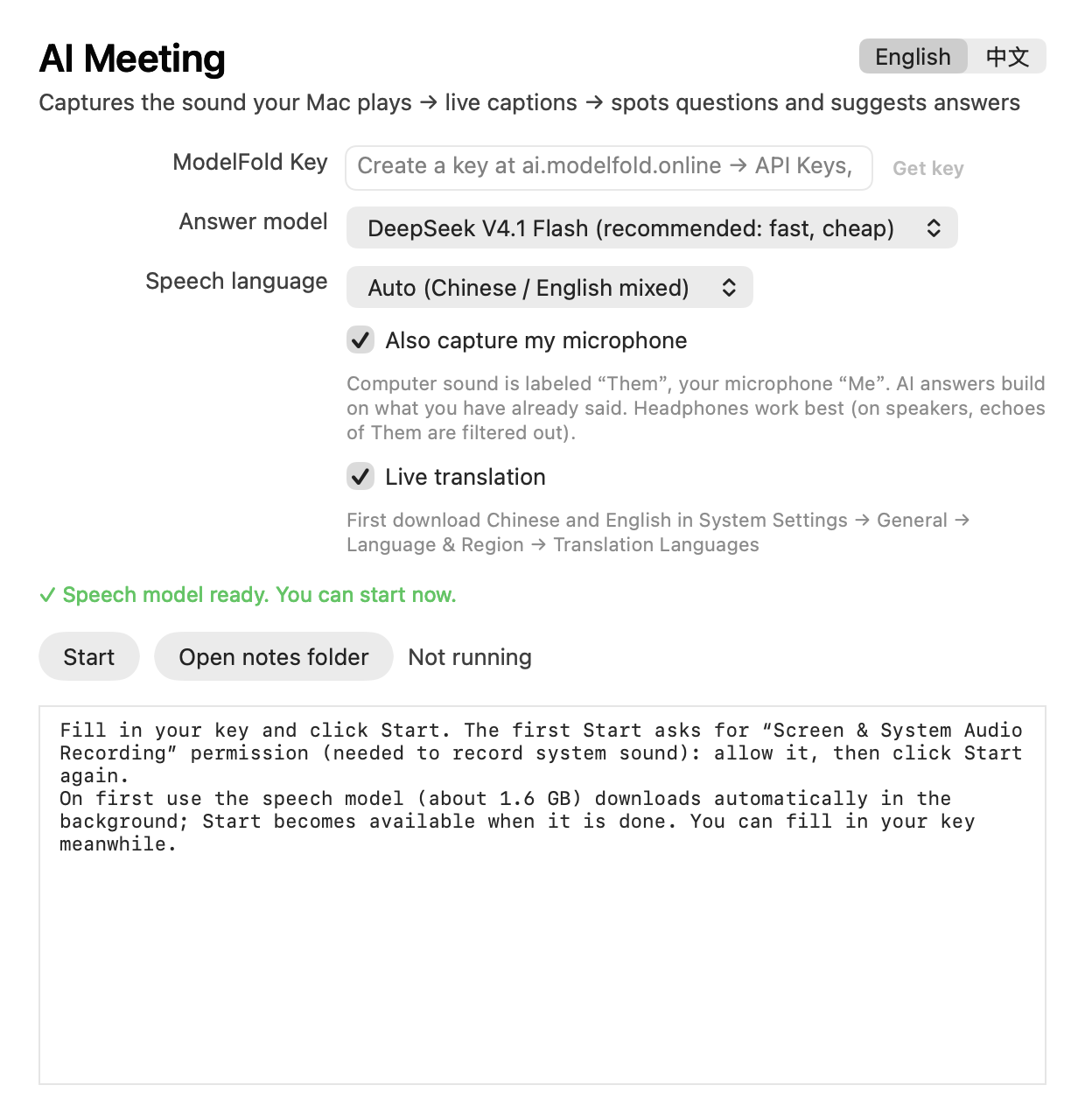
The key is stored only on your Mac (~/Library/Application Support/AI Meeting/config.json) and filled in automatically next time.
Step 4: Allow Screen & System Audio Recording
To record audio played by other apps (meeting apps, browsers), macOS requires the Screen & System Audio Recording permission. The app records system audio only, never your screen.
The first time you click Start, macOS asks for permission and takes you to System Settings.
In System Settings → Privacy & Security → Screen & System Audio Recording, turn the app on (your password may be required).
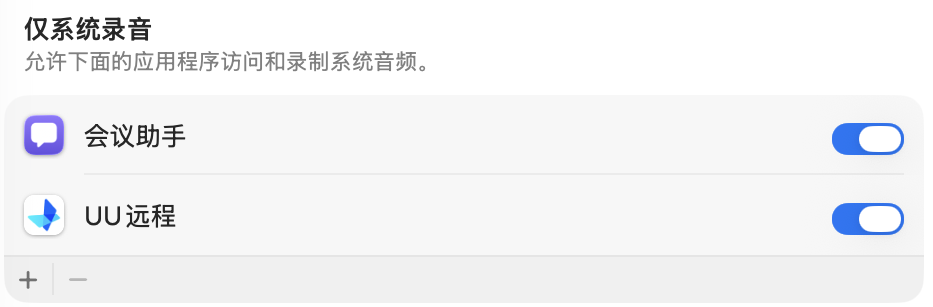
If macOS offers Quit & Reopen, click it — or quit the app and open it again yourself — then click Start again.
If the permission is missing, the app shows a prompt whose Open System Settings button takes you straight to this page.
The first Start also asks for Microphone access; click Allow. The microphone captures what you say: captions and notes are labeled Them and Me, and when they follow up, the suggested answer builds on what you already said. You can turn the microphone off in the main window. Headphones work best; on speakers, echoes of the other side are filtered out.
Step 5: Start
On first launch the speech model downloads in the background with a progress bar (percent, speed, time left); it resumes after a quit or network drop and shows a notification when ready. Then click Start.
A floating caption window shows what is being said in real time. When a question is detected, a yellow ❓ question and a green 💡 suggested answer appear.

The caption window stays on top and can be dragged and resized; it remembers its position. Closing it does not stop recording.
Click Stop to save the full transcript and all Q&A to Documents / AI Meeting Notes; the file opens in TextEdit. Use Open records folder in the main window to browse past sessions.
Pricing
- The app is free.
- Speech recognition runs offline on your Mac: no credits are used and audio is never uploaded.
- Only when a question is detected are the last few minutes of transcript sent to your chosen chat model, billed by actual usage on your ModelFold account — about 1 credit (≈ $0.005) per answer with the default model.
FAQ
It stops right after I click Start
Usually the Screen & System Audio Recording permission is off, or the app was not reopened after enabling it. Follow Step 4, then quit and reopen the app.
Does it work with headphones?
Yes. It records the audio before it reaches the output device, so wired headphones, Bluetooth and AirPods all work. It cannot capture audio that never passes through this Mac (for example a call on your phone's speaker).
I see captions but no questions or answers
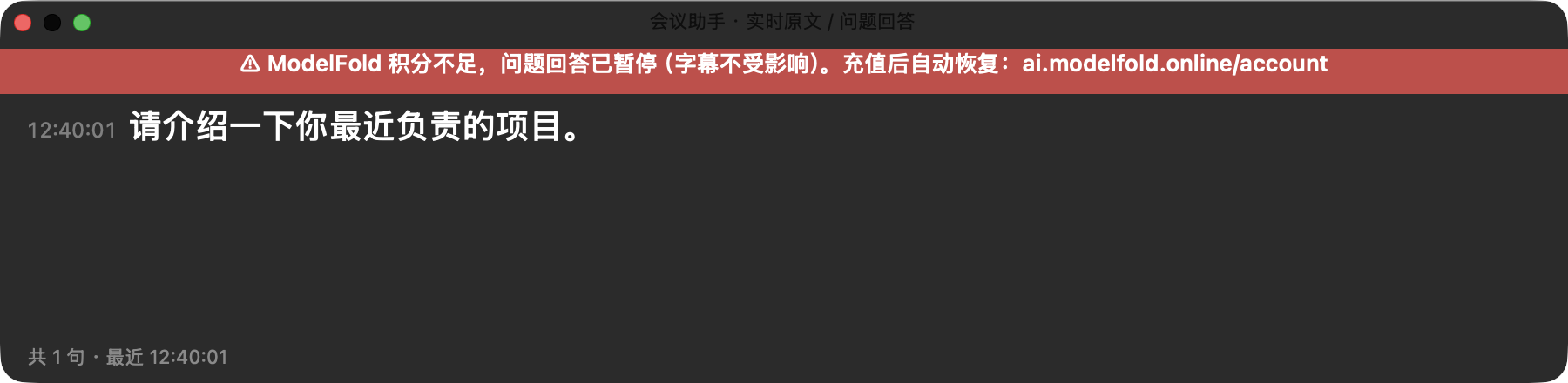
- Out of credits: a red banner at the top of the caption window says answers are paused, and the main window offers Top up. Captions and records keep working; after topping up, answers resume automatically on the next question (a green banner confirms). You also get a one-time yellow warning when fewer than 20 credits remain.
- Invalid or revoked key: a red banner appears; use Manage keys to create a new one, then stop and start again with it.
- No connection: a yellow banner says ModelFold cannot be reached; answers resume when the network is back.
- Only question-like sentences (question marks, What / How / Why, or Chinese question words) trigger an answer.
Live translation says language packs are not downloaded
Translation uses macOS's built-in offline translation. Download "Chinese (Simplified)" and "English" under System Settings → General → Language & Region → Translation Languages. Captions and answers work without it.
The speech model downloads slowly or fails
The app tries huggingface first and falls back to a mirror automatically. If it still fails, check your connection and click Start again to retry.
How do I uninstall?
Drag the app from Applications to the Trash. To remove everything, also delete ~/Library/Application Support/AI Meeting (speech model and key) and ~/Documents/AI Meeting Notes (meeting records).
Questions or feedback: support@modelfold.online.