Connect CC-Switch to ModelFold
CC-Switch is an open-source desktop configuration manager for Claude Code, Codex, Gemini CLI and other tools. It switches API providers, base URLs, keys and models. It is not a model vendor or a replacement for your coding client.
First-request caching
Coding agents send tool definitions, system prompts and conversation context. Processing and caching this context can make the first request consume more than later requests. Cache hits depend on the model, context and cache lifetime; they are not guaranteed. Check actual consumption in your ModelFold usage records.
Install and prepare
- Download the appropriate package from official Releases and follow the official README installation instructions.
- Have Claude Code or Codex installed and obtain your own ModelFold API Key. See the Claude Code and Codex CLI guides for client installation and protocol details.
- CC-Switch imports existing configurations on first launch. Keep the original provider so you can switch back.
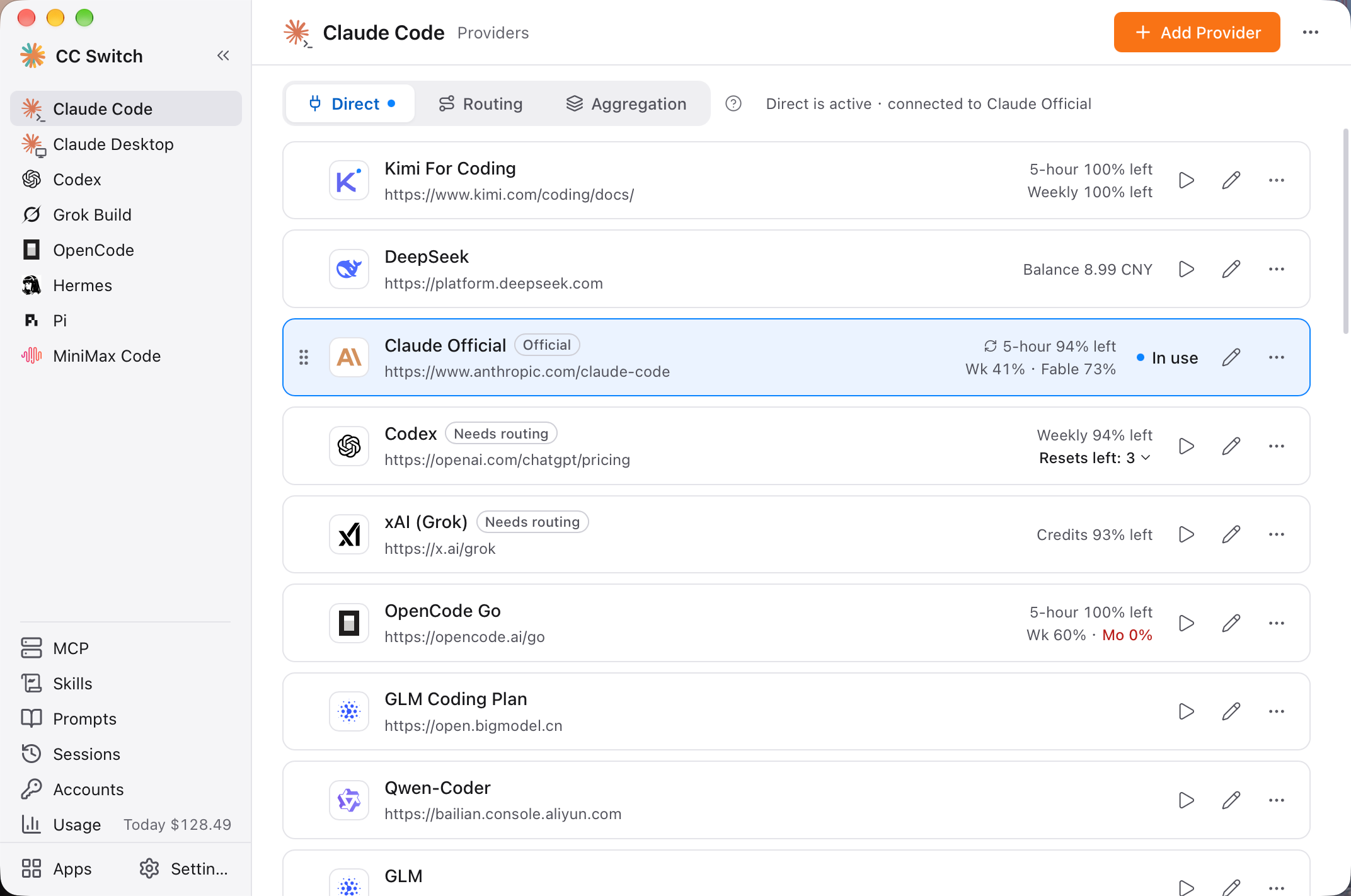
This image comes from the official README. It illustrates provider management, not a tested ModelFold connection. Labels may vary by version. Asset source and license.
Add ModelFold for Claude Code
- Select Claude Code in the sidebar and open the Direct tab.
- Click + / Add Provider in the upper-right corner and choose Custom Configuration.
- Set the name to
ModelFold, the endpoint tohttps://modelfold.ai/anthropic, and the API key to your raw ModelFold key without aBearerprefix. Use Anthropic Messages. - The recommended main model is
claude-opus-5-5. Fill the Opus, Sonnet and Haiku mappings as well. Use IDs returned byhttps://modelfold.ai/anthropic/v1/modelswith your own key.
Example for the configuration editor (replace the key before saving):
{
  "env": {
    "ANTHROPIC_BASE_URL": "https://modelfold.ai/anthropic",
    "ANTHROPIC_AUTH_TOKEN": "YOUR_MODELFOLD_API_KEY",
    "ANTHROPIC_MODEL": "claude-opus-5-5",
    "ANTHROPIC_DEFAULT_OPUS_MODEL": "claude-opus-5-5",
    "ANTHROPIC_DEFAULT_SONNET_MODEL": "claude-sonnet-5-5",
    "ANTHROPIC_DEFAULT_HAIKU_MODEL": "claude-haiku-5-5"
  }
}
Keep one credential method: if the form generated ANTHROPIC_API_KEY, you can use that instead of ANTHROPIC_AUTH_TOKEN. Do not keep conflicting keys. Do not append /v1/messages to the base URL.
- Click Add, then Enable on the ModelFold provider card. The official README says Claude Code does not need a restart. Run
/statusin the client to inspect the endpoint; open a new session if an existing session retains the old model.
Add ModelFold for Codex
- Select Codex → Direct → + / Add Provider → Custom Configuration.
- Use
ModelFoldas the name,https://modelfold.ai/openai/v1as the endpoint, your ModelFold key, and OpenAI Responses as the protocol. - Enter the following in the CC-Switch provider editor's auth.json section. This is the editor's credential field; the current version writes the necessary client configuration itself. You do not need to overwrite your local login file manually.
{
  "OPENAI_API_KEY": "YOUR_MODELFOLD_API_KEY"
}- Enter this in its config.toml section:
model_provider = "ModelFold"
model = "gpt-6-astra"

[model_providers.ModelFold]
name = "ModelFold"
base_url = "https://modelfold.ai/openai/v1"
wire_api = "responses"
Use a model slug returned by https://modelfold.ai/openai/v1/models with your key. The directory card recommends claude-opus-5-5 for the Claude Code setup above; do not assume that ID is available through Codex's Responses protocol.
- Click Add, then Enable on the provider card. Restart Codex or your terminal for the endpoint and model changes to take effect.
Verify and switch back
- Check the active provider, endpoint and model. The official Connectivity check tests endpoint reachability only; it does not validate the key or model. Initiate a generation yourself to check actual operation and review the result in ModelFold usage records.
- For 401 errors, check the key. For 404 errors, check the protocol and duplicated
/v1segments. For model errors, refresh the corresponding protocol's model list. - This guide uses Direct mode. If the client shows
127.0.0.1:15721orPROXY_MANAGED, local routing is active; click Back to direct on that tool's page. - CC-Switch also supports Gemini CLI, but its protocol must match the provider. Do not copy the Claude Code or Codex endpoint into Gemini CLI. See more integrations.
- To restore your previous configuration, enable its provider in CC-Switch and restart Codex if applicable. To return to official login, enable the built-in official provider and follow the client's sign-in flow.
See the official Add Provider manual for additional interface details.